Shortcuts
Shortcuts are useful collections of Applied Tools or copied Detail lines that you want to re-use again and again in your Budget.
Shortcuts capture information from the MMB Budgeting interface, so they cannot be created in setup. See Creating Shortcuts for information on how to create Shortcuts.
Shortcuts Setup allows you to view, edit, and delete your Shortcuts.
Access Shortcuts Setup
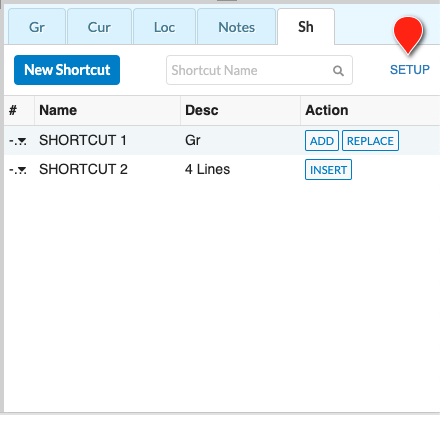
To access Shortcuts setup you can either:
- Click the
SETUPbutton in the Shortcuts Apply tool - Click on
Sh (shortcuts)in the navigation bar
Managing Shortcuts
Shortcuts are currently budget specific.
Shortcuts are displayed in the left rail of the Shortcuts Setup window. Selecting a shortcut will show the details currently stored in that shortcut and what type it is.
To edit the name of a shortcut:
- Select the shortcut in the left rail
- Click the name field in the right pane
- Edit the name and then click away from the field to commit your changes
Editing Shortcuts
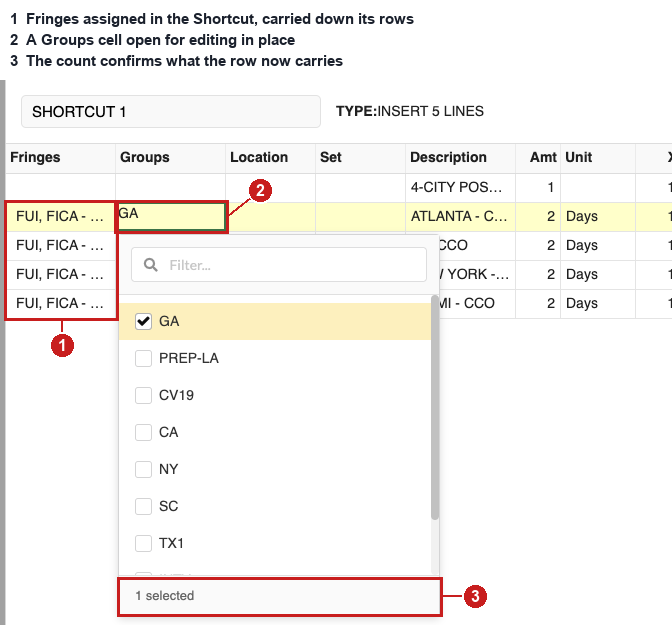
You can change a saved Shortcut in place, so a rate update or a new fringe assignment does not require deleting the Shortcut and building it again.
- Select the Shortcut in the left rail
- Double-click a cell in the detail view to edit it
Fringes,Groups,Location,Set, andCurrencyopen the same picker you use when creating a ShortcutDescription,Amt,Unit,Rate,X,Unit2,Unit3,4X, andUnit4take typed values
- Press
TABor click another cell to commit the change
Undo and redo apply to these edits. An edited Shortcut applies to insertions you make afterward.
Adding and Removing Rows
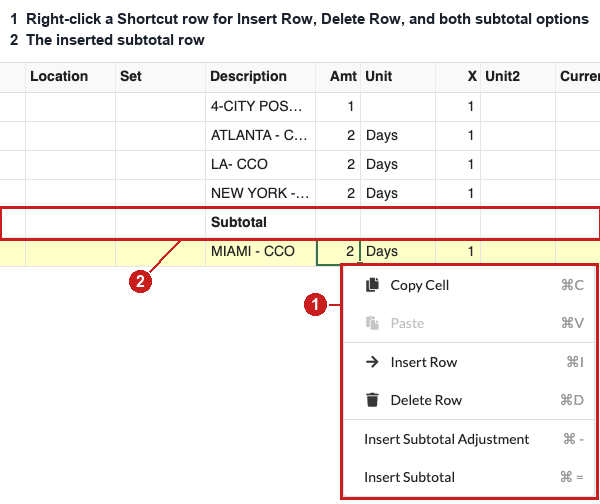
Right-click a row in the detail view and select Insert Row, Delete Row, Insert Subtotal, or Insert Subtotal Adjustment. Rows you add can be edited right away, and subtotal rows calculate the same way they do at the Detail level.
Deleting Shortcuts
To remove one or more shortcuts:
- Select them in the left rail
- Click
DELETE
The shortcut will be immediately deleted and cannot be recovered.
